Remove silence from video and the “um…” too.
If you record yourself talking to the camera, you know: half of editing time is spent removing silence from the video. Free Content's Auto Editor reads what you said, cuts the pauses and hesitation sounds — the jump cuts you'd make by hand — and gives you the video back already edited, not just shorter.
How to remove silence from video without hunting pauses.
A typical silence remover only looks at volume. The Auto Editor also looks at what was said — that's why it can remove the "uh…" that isn't silence.
Transcribes the speech
Your video's audio becomes text. From there, the app knows where there's speech, where there's a pause and where there's rambling.
Cuts what's left over
Out go the silences and hesitation sounds like "uh…", "ah" and "hm". Every word you actually said stays.
Review by section
Don't like some part of the edit? Review or swap that element and the app redoes only that section.
The Auto Editor editing a recorded video.
A tutorial recorded inside the app: the talking-head video goes in raw and comes out without silences, with captions, switching framing and a hook.
What it looks like inside the app.
Screens from the tutorial recorded in the app.
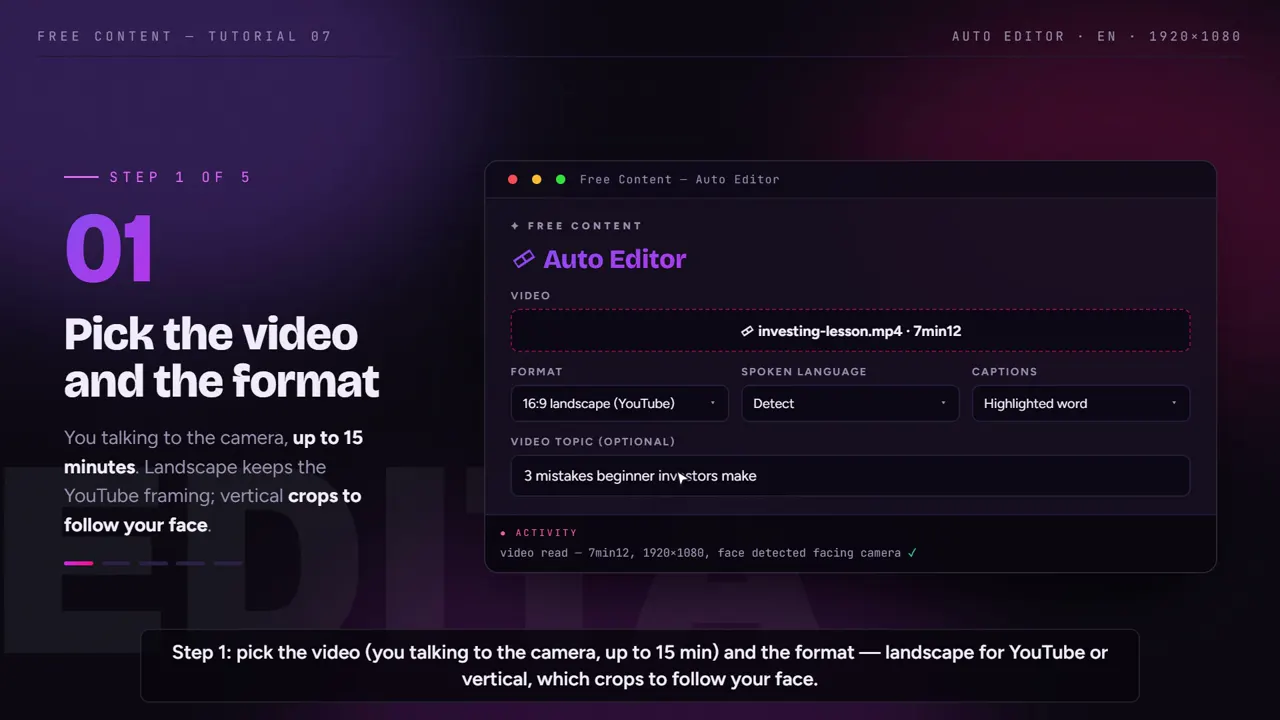
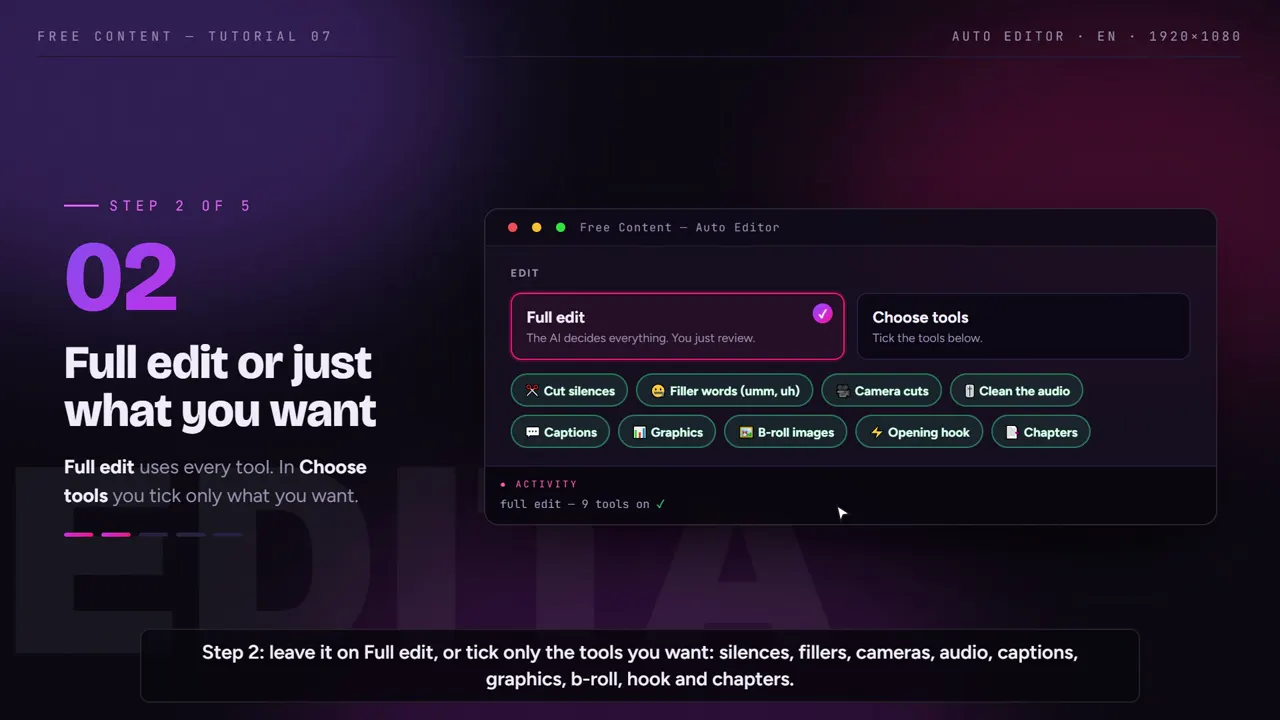
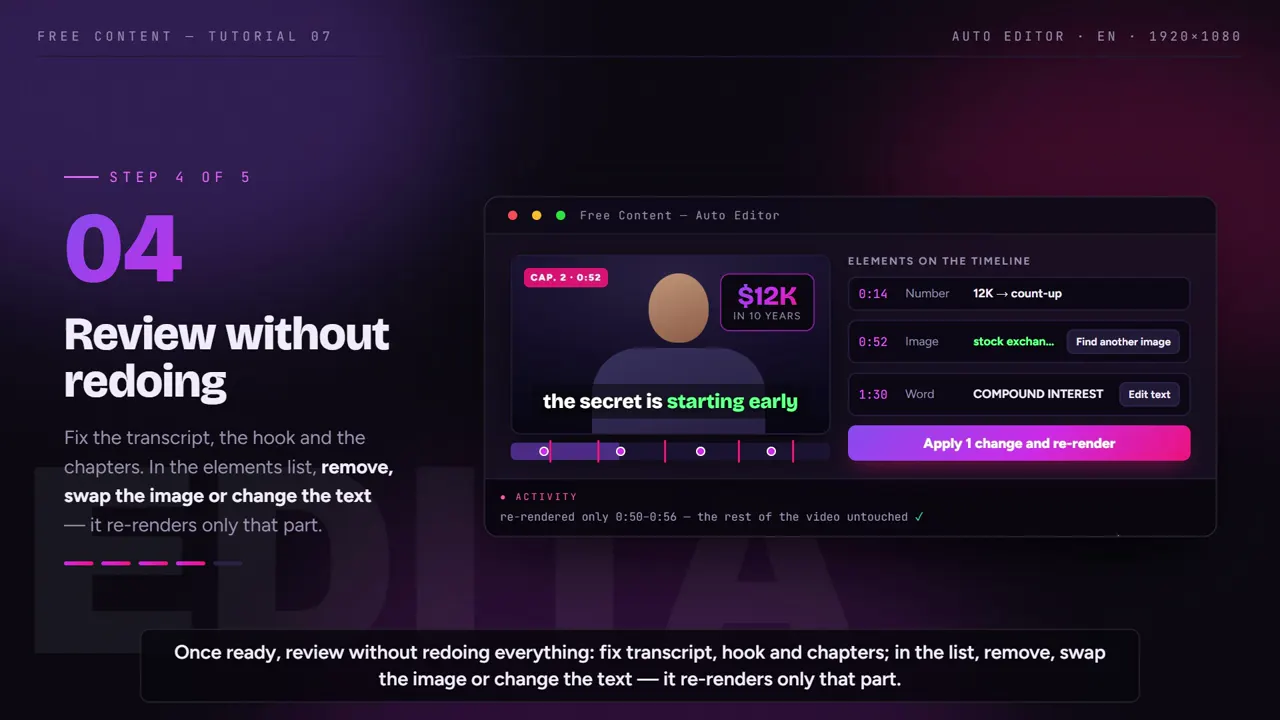
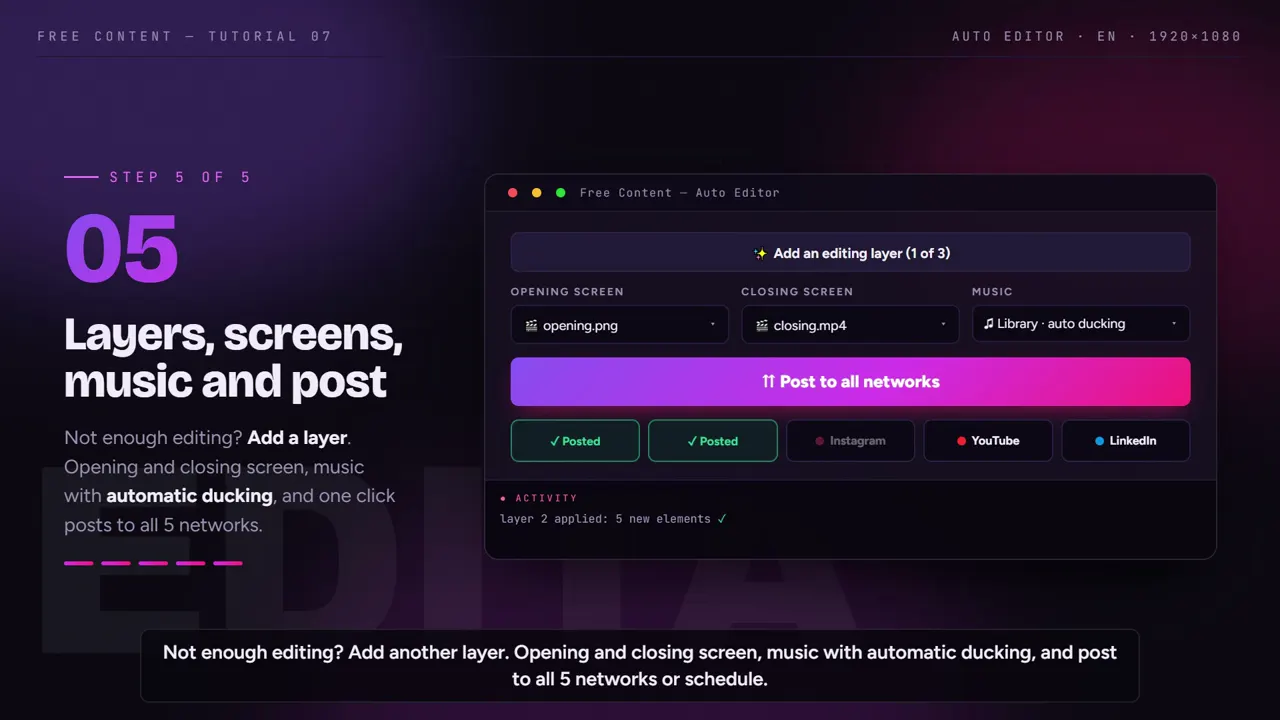
Removing silence is just the start.
A video without pauses, but stuck in the same framing and with no captions, still looks raw. The Auto Editor does the rest of the edit in the same pass.
Silence and rambling
- Pauses between sentences
- Hesitations like "uh…", "ah" and "hm"
- Real words stay, even repeated ones
A real edit
- Framing that switches while following the face
- Cleaned-up audio
- Captions and graphics synced with the speech
A start that holds
- Opening hook
- B-roll images throughout the video
- Chapters marked
What it was built for
- Your video talking to the camera
- Up to 15 minutes per video
- Longer than that? The Clip Maker clips it and also removes the pauses
What kind of video it's for.
Cutting silence pays off on any video where one person talks to the camera, up to 15 minutes.
Classes and tutorials. Explaining step by step comes with pauses to think and to look at the screen. Cutting them keeps the pace without changing the content.
Reviews and talking vlogs. The "uh…" between one point and the next goes; every opinion stays.
Church videos. A devotional, a short message or a notice recorded by the pastor comes out tight. For the full service, the path is church sermon clips.
LinkedIn videos. A short, direct take recorded on the webcam, without the dead air at the start and between sentences.
Longer than 15 minutes? Livestreams, podcasts and full services go to the Clip Maker, which turns the long video into short clips and also cuts the pauses — see podcast clips and the clip channel routine. Agencies editing clients' videos can see video automation for agencies.
Removing silence by hand vs in the Auto Editor.
The same ten-minute talking-head video, edited both ways.
| By hand, in an editor | In the Auto Editor | |
|---|---|---|
| Finding the pauses | staring at the audio waveform, one by one | from the speech transcript |
| "Uh…", "ah", "hm" | listen to everything again to find them | removed along with the silence |
| Framing | a single shot, or a manual zoom on each cut | switches while following the face |
| Captions | another step, after cutting | come out synced to the edited speech |
| Hook and chapters | think them up, write and assemble | generated during the edit |
| Changing your mind about a section | redo from there on | swap the element; only that section is redone |
Manual editing is still better if you want to decide on every breath. But if the goal is to publish today's video today, the most tedious step — hunting for pauses and "uh…" — is exactly the one you can hand to the machine.
Record with the cut in mind.
Made a mistake? Stop and repeat the whole sentence. Restarting mid-sentence makes the splice hard for any editor, automatic or not. Pause, breathe, and say it again from the start of the idea.
Keep the mic close. Transcription decides what's speech and what's a pause. With echo, a fan or loud music in the background, that line gets blurrier.
Split long topics. The Auto Editor works with videos up to 15 minutes. If the topic is bigger, record it in parts — or record it all in one go and use the Clip Maker to turn the long video into short clips, which also come out without pauses.
Review before posting. Since each element is redone separately, reviewing doesn't cost a full re-render. Then publish to 10 networks or schedule it. The auto captions come along too.
Frequently asked questions.
If your question is about the app in general, the home FAQ covers the rest.
What's the maximum video length for removing silence?
Does it also remove "like" and repeated words?
Does it work with an interview or a conversation between two people?
I didn't like one part of the edit. Do I have to redo everything?
Does the Auto Editor touch the audio besides cutting?
Does my video need to leave my computer to be edited?
Do I need to know how to edit video?
It cut a pause I wanted to keep. Now what?
Why is there still a pause left in the video?
Is there a free trial?
Does it work on a phone or in the browser?
What video files does it accept?
Record today, post today.
Download it, point it at the last video you recorded talking to the camera and watch it come back without pauses or "uh…". Seven days free, no credit card.
⤓ Download Free Content for Windows