Convert horizontal video to vertical with the face in frame.
To convert horizontal video to vertical — landscape to portrait, 16:9 to 9:16 — you throw away two thirds of the image. The question is which part stays. In Free Content, whoever is speaking stays: the camera follows the face, even when the person moves or the video switches cameras.
How a horizontal video becomes vertical (16:9 to 9:16).
The vertical frame isn't locked to the center. It moves along with whoever is speaking.
Finds the face
The app locates the face of whoever is on screen and uses it to decide what needs to stay inside the vertical frame.
Follows the speaker
When the person moves, the frame moves with them. When the source switches cameras, multicam mode finds the face again in the new shot.
Exports in Full HD
The clip comes out at 1080×1920, with karaoke captions and a hook at the top. If you prefer, square 1080×1080 or horizontal 1920×1080.
The camera following the speaker.
In the Clip Maker tutorial, a horizontal video becomes vertical clips with the speaker's face always in frame.
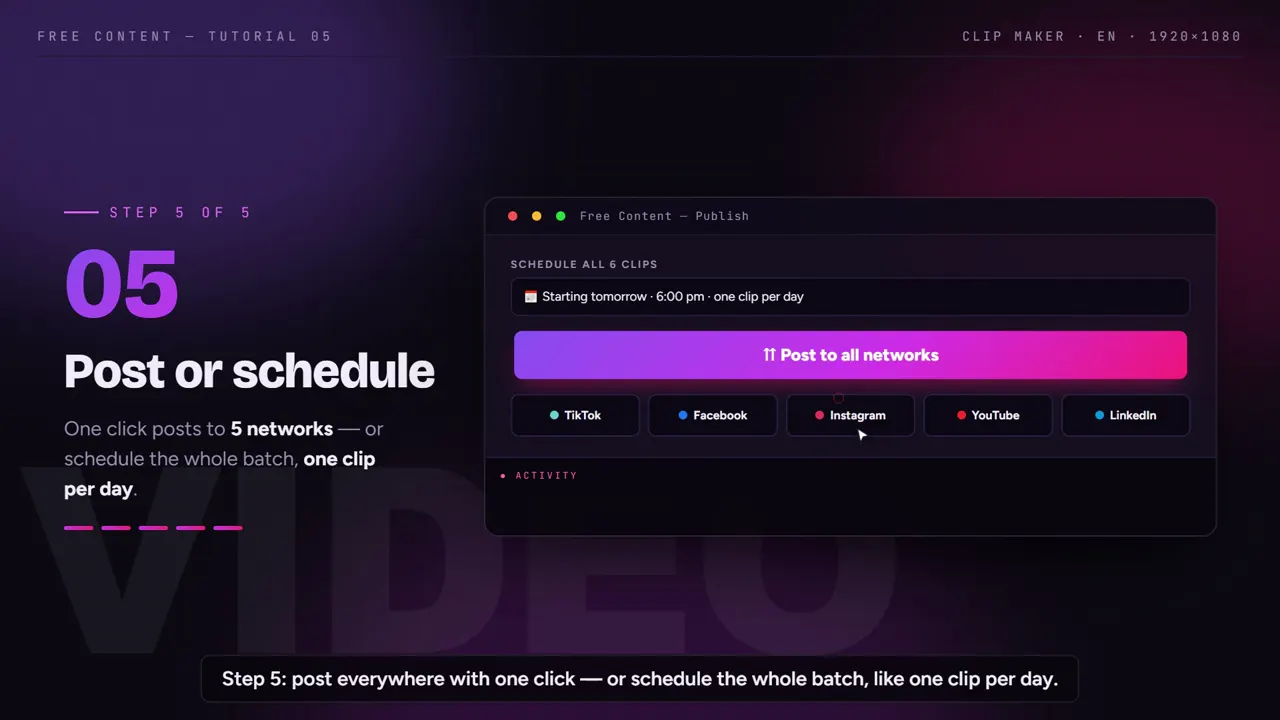
What it looks like inside the app.
Screens from the tutorial recorded in the app.

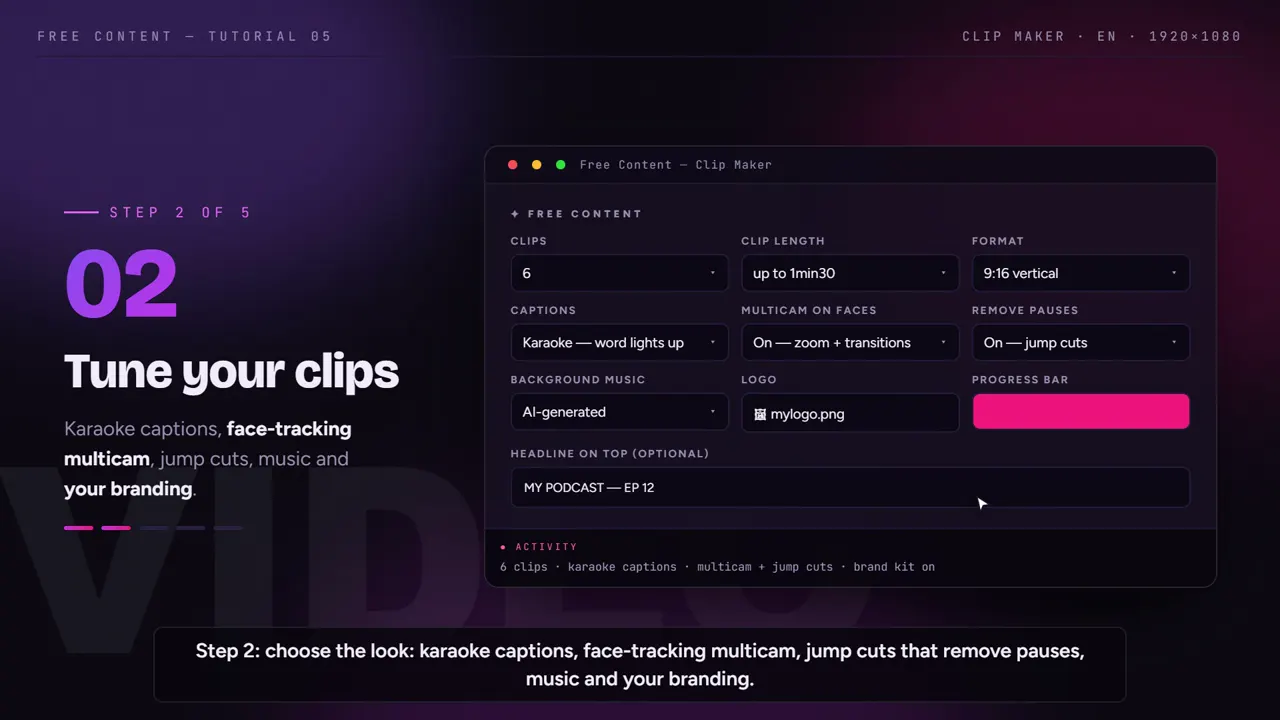

Three ways to go from horizontal to vertical.
Anyone who has tried to convert a landscape video for phones has landed on one of these three.
| Fixed center crop | Full video with bars | Camera that follows the face | |
|---|---|---|---|
| The speaker stays in frame | only if they stay still in the middle | yes, but small | yes, tracked |
| Fills the phone screen | yes | no — bars left at top and bottom | yes |
| Conversation between two people | one of them disappears | both show up, tiny | the frame goes to whoever is speaking |
| Source that switches cameras | the center changes subject with every shot | not affected | finds the face again in the new shot |
| Manual work | little, weak result | little, weak result | none — it's automatic |
Bars still have their use: when what matters is the whole screen — a spreadsheet, a slide, a game map — and not a face. In those cases, square or horizontal format preserves more than any vertical reframe.
Rotate or reframe? Landscape to portrait isn't a rotation.
Two different problems often get the same name. One is a video recorded sideways — the phone was held the wrong way and the image is lying down. That calls for rotating, and Free Content doesn't rotate video; any basic editor or your phone's gallery can fix it.
The other is a video that is correctly horizontal, 16:9, and needs to become vertical, 9:16, to fill the phone screen. That's reframing: choosing which vertical slice of the frame stays. That's what the app does — and it chooses by following the face of whoever is speaking.
In short: if the image is upright but too wide, the app solves it. If the image is lying on its side, rotate it first, then bring it to the app.
Where reframing comes in.
The face-tracking camera isn't a standalone tool. It works inside two of the app's formats.
Clips from long videos
- Podcast, livestream, class or sermon recorded horizontally
- Each clip comes out vertical, with the speaker in frame
- Works with sources that switch between cameras
The video you recorded
- Your talking-head video, up to 15 min
- Framing switches while following the face
- Along with silence removal, captions and a hook
Three outputs
- Vertical 1080×1920
- Square 1080×1080
- Horizontal 1920×1080
What goes on top
- Synced karaoke captions
- Hook at the top and progress bar
- Your logo, with no app watermark
What helps a vertical video look good.
Source resolution. Vertical uses only a strip of the horizontal frame. If the original recording is already low-res, that enlarged strip looks soft. Record at the highest resolution your camera allows.
Room around the person. If you record with vertical reuse in mind, leave a bit of headroom and space on the sides. A face pressed against the edge of the horizontal frame limits what reframing can do.
One person per shot helps. In multi-camera recordings, a close-up on each guest keeps the face large inside the vertical strip. In a wide shot, with everyone small, there's little resolution left for each person.
Check the first second. In the feed, the decision to stay or scroll happens right at the start. Before posting, check that the face is well framed at the opening of the clip and that the hook at the top doesn't cover anything important.
Choose the format by network. Shorts, TikTok and Reels call for vertical. In the LinkedIn and Facebook feeds, square usually works well. See also how to turn YouTube videos into Shorts and how to turn a long video into short clips.
Who reframes the most. Podcasts recorded horizontally that become podcast clips, churches turning the streamed service into church sermon clips, anyone running a clip channel and agencies producing for several clients — see video automation for agencies.
Frequently asked questions.
If your question is about the app in general, the home FAQ covers the rest.
What happens when two people talk in the same video?
The original video switches cameras several times. Does it work?
What resolution is the vertical output?
What about videos with nobody on screen, like screen recordings?
Can I do this on my phone?
Do I need to adjust the frame by hand afterwards?
Does it work with old videos recorded horizontally years ago?
Is horizontal or vertical video better?
Does converting to vertical lose quality?
Can it rotate a video recorded sideways?
What files can I convert, and to which aspect ratios?
Take a landscape video and see it stand up.
Point it at a horizontal recording of people talking and watch the frame follow the face. Seven days free, no credit card.
⤓ Download Free Content for WindowsFeatures
- Long video to short clips
- Auto captions
- Horizontal to vertical
- Remove silence
- YouTube to Shorts