Auto captions for video, word by word.
Free Content's auto captions for video come from the transcript of the audio itself and light up each word the moment it's spoken. It's the quickest way to add captions to a video: no typing, no dragging blocks on a timeline — and, if you want, translated into another language.
How to add auto captions to a video, in three steps.
Three stages, all inside the app. These auto captions aren't text pasted on top: they come from the same audio you recorded.
Local transcription
The audio becomes text on your computer, with Whisper. The spoken language is detected automatically — you don't need to pick it beforehand.
Word-level sync
Every word has its own timestamp. On screen, it lights up as it's spoken, karaoke style.
Targeted review
Spotted a wrong word? Fix the text and the app redoes only that clip. The others stay as they are.
Karaoke captions coming out ready on the clip.
In the Clip Maker tutorial you can see the word-by-word captions, generated from the transcript, already applied to every clip.
What it looks like inside the app.
Screens from the tutorial recorded in the app.
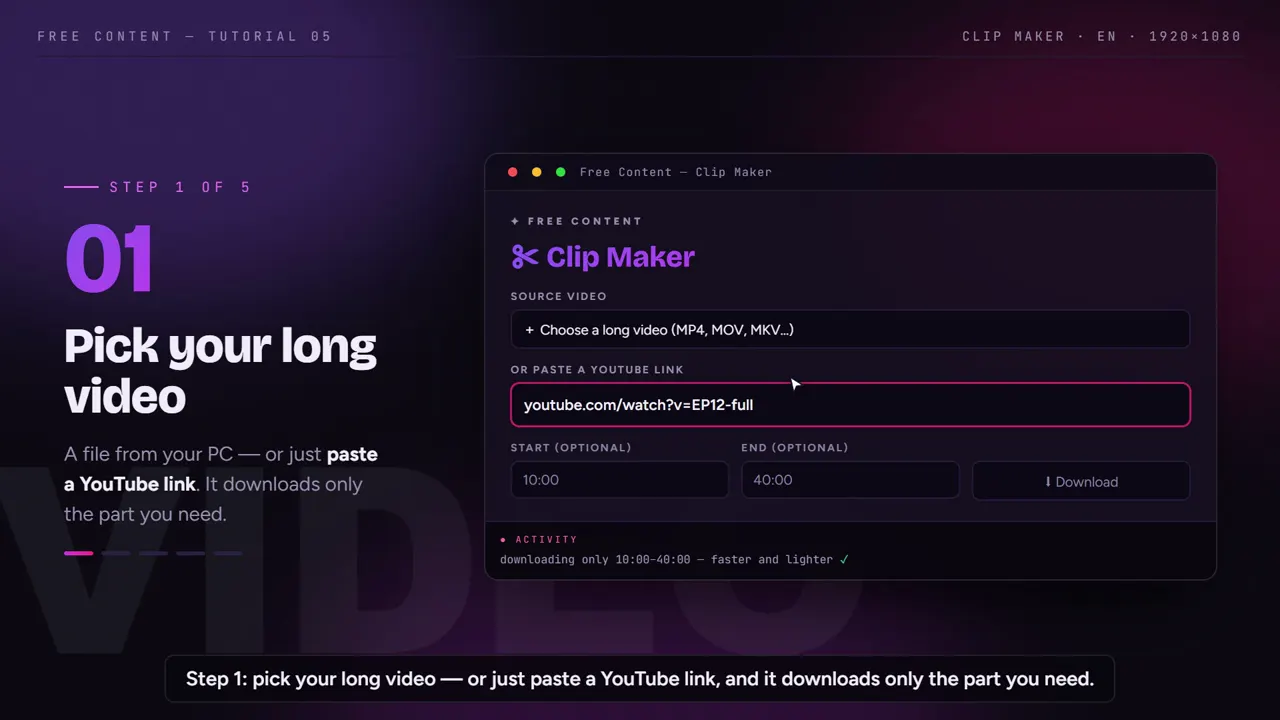
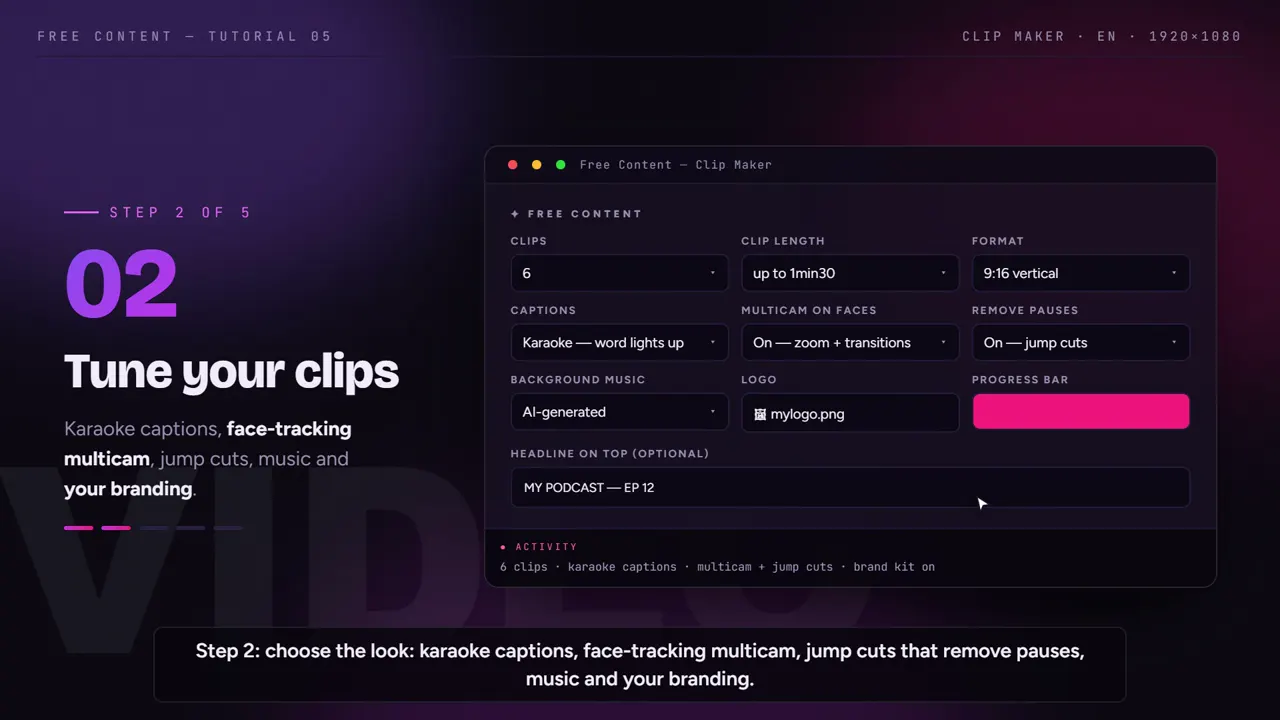
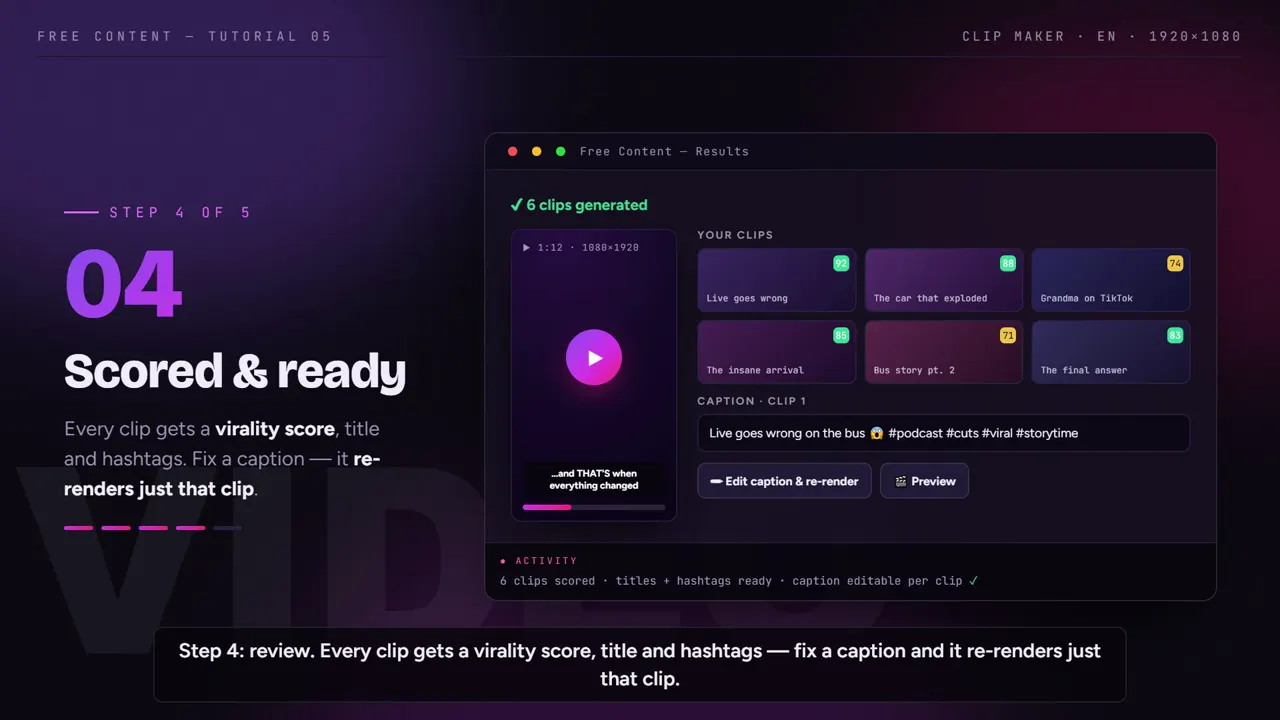
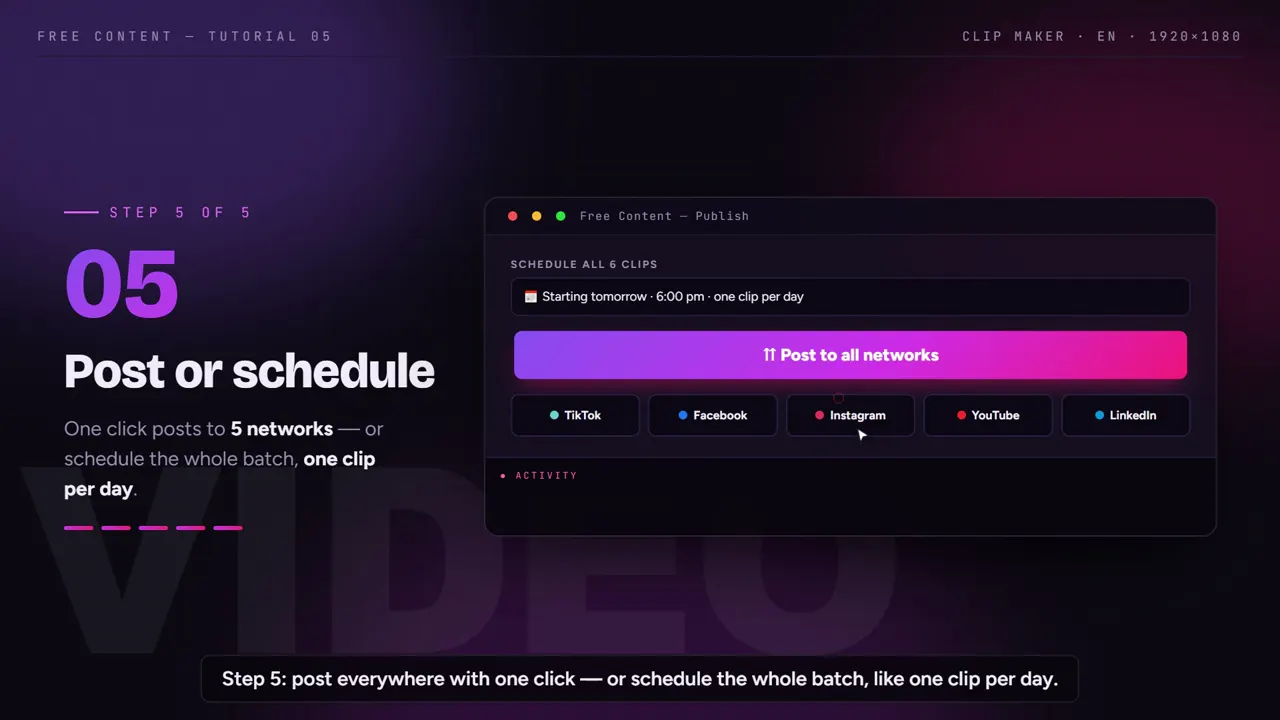
What comes with the auto subtitles.
Captions work in the Clip Maker, which turns long videos into clips, and in the Auto Editor, for the video you recorded yourself talking to the camera.
In exact rhythm with the speech
- Word by word, synced
- Generated from the transcript, not typed
- Holds the eye of people watching on mute
- Choose the caption style in the app
Original or translated
- Spoken language detected automatically
- Can be translated into another language
- When translated, captions appear by sentence
Title and hashtags in the same language
- Title and hashtags come out in the caption language
- A Spanish clip with English captions? The post comes out in English
- Ready to publish to 10 networks
One wrong word, one clip redone
- Fix it right in the text
- Redoes only the affected clip
- No adjustments to the other clips are lost
Captioning by hand vs auto captions.
What each step costs when you caption a one-minute clip in a regular editor.
| By hand | In Free Content | |
|---|---|---|
| Speech text | listen and type, rewinding the video | comes from the audio transcript |
| Sync | adjust the in and out of every block | timed word by word |
| Karaoke effect | animate word by word | already applied |
| Version in another language | translate and sync everything again | translated captions, by sentence |
| One wrong word | find it, fix it, export again | fix the text; only that clip is redone |
| Title and hashtags | write them separately | in the caption language |
No transcription is 100% accurate. Proper names, brands and slang are where it stumbles most. The difference is that here you review and fix, instead of writing everything from scratch.
How to get the best auto captions.
Take care of the audio before the captions. Mic close to the mouth, little echo and low music under the speech. Any auto caption is only as good as the audio it hears.
Check the names. Before posting, scan the names of people, brands and technical terms. That's where the mistake someone will point out in the comments lives. Fixing one word doesn't redo the whole batch, only the clip it's in.
Choose translation by audience, not by video. If your audience speaks another language, translated captions take the clip to them without re-recording anything. Remember that, when translated, captions appear by sentence, not word by word — word order changes from one language to another.
Let the captions do the sound's job. Many people scroll with their phone on mute. If the clip's first sentence already appears written and lit up in rhythm with the speech, people without sound understand what it's about before deciding to stay.
Use captions together with framing. In vertical, the camera follows the speaker's face and the captions follow the speech. See how to convert horizontal video to vertical and how to remove silence from video before captioning.
Who uses this AI caption generator the most. People running a clip channel, shows turning episodes into podcast clips, churches posting church sermon clips and agencies producing for clients — see video automation for agencies.
Frequently asked questions.
If your question is about the app in general, the home FAQ covers the rest.
How do I add automatic captions to a video?
Which languages do the auto captions work in?
Is my video's audio sent to a server for transcription?
Why don't translated captions appear word by word?
Do auto captions get proper names wrong?
Can I caption a video I recorded myself, without turning it into clips?
Do captions get a watermark on the free trial?
Why add captions to a video at all?
What's the difference between captions and closed captions?
Can I choose the caption style?
Can I export the captions as an SRT or VTT file?
What if several people are talking?
Caption your next video without typing a word.
Download it, point it at a video with speech and watch the karaoke captions come out in sync. Seven days free, no credit card.
⤓ Download Free Content for Windows