CapCut alternatives for automatic clips.
CapCut is a great editor — but you're the one cutting every clip. If what you want is to drop in a long video and get finished clips back, these are the CapCut alternatives that do it on their own: Free Content, Opus Clip, Wisecut and Vizard. Disclosure: Free Content is our product, and we also show where the others win.
How to choose: manual editor or automatic clips?
Before comparing prices, answer three questions. They separate people who need an editor like CapCut from people who need an automatic clipping tool.
Edit, or get it done?
If you like tweaking every transition and effect, a manual editor like CapCut is the right fit. If time is the bottleneck, an automatic tool picks the moments, captions and frames them for you.
Where do you work?
Opus Clip, Wisecut and Vizard run in the browser. Free Content is a program for Windows PCs (Mac in beta) and processes on your computer. CapCut has mobile, desktop and web.
What happens after the cut?
Check whether the tool publishes and schedules to social networks, and on which plan. Without that, you'll still be posting clip by clip by hand.
The Clip Maker in a minute and a half.
A tutorial recorded inside the app: a long video becomes a batch of clips with captions and a face-tracking camera, without opening a timeline.
What it looks like inside the app.
Screens from the tutorial recorded in the app.
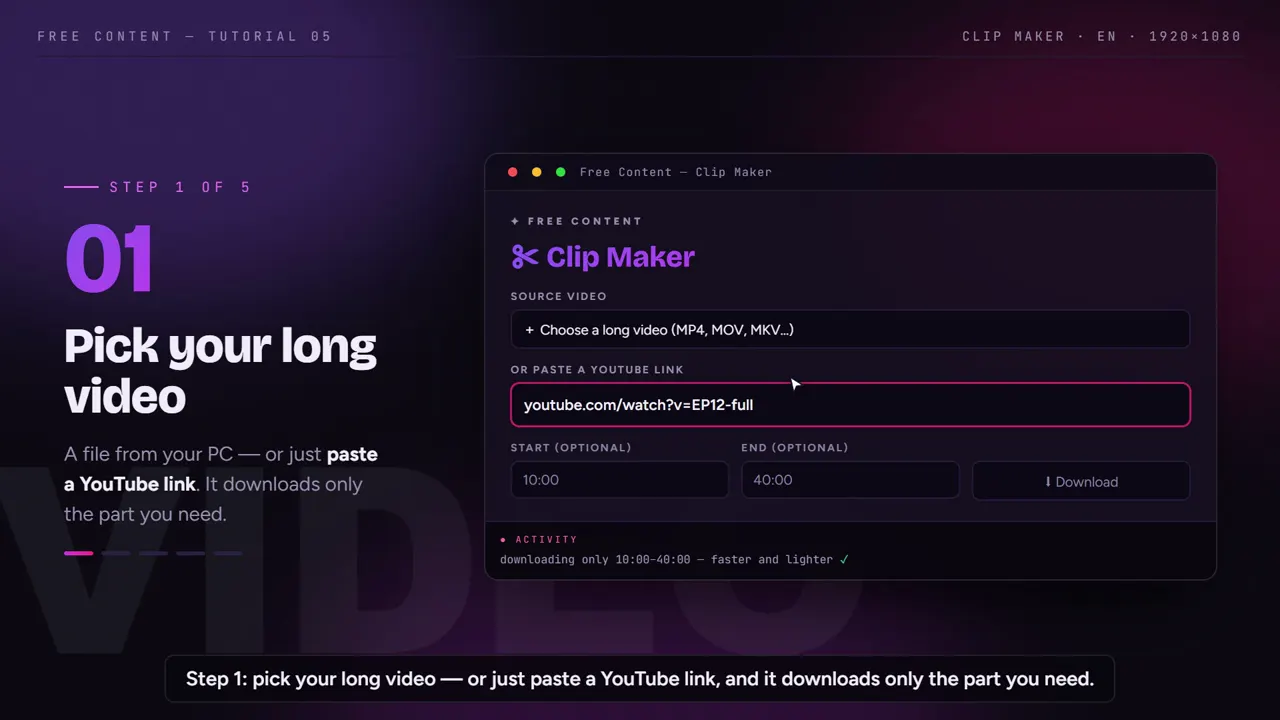
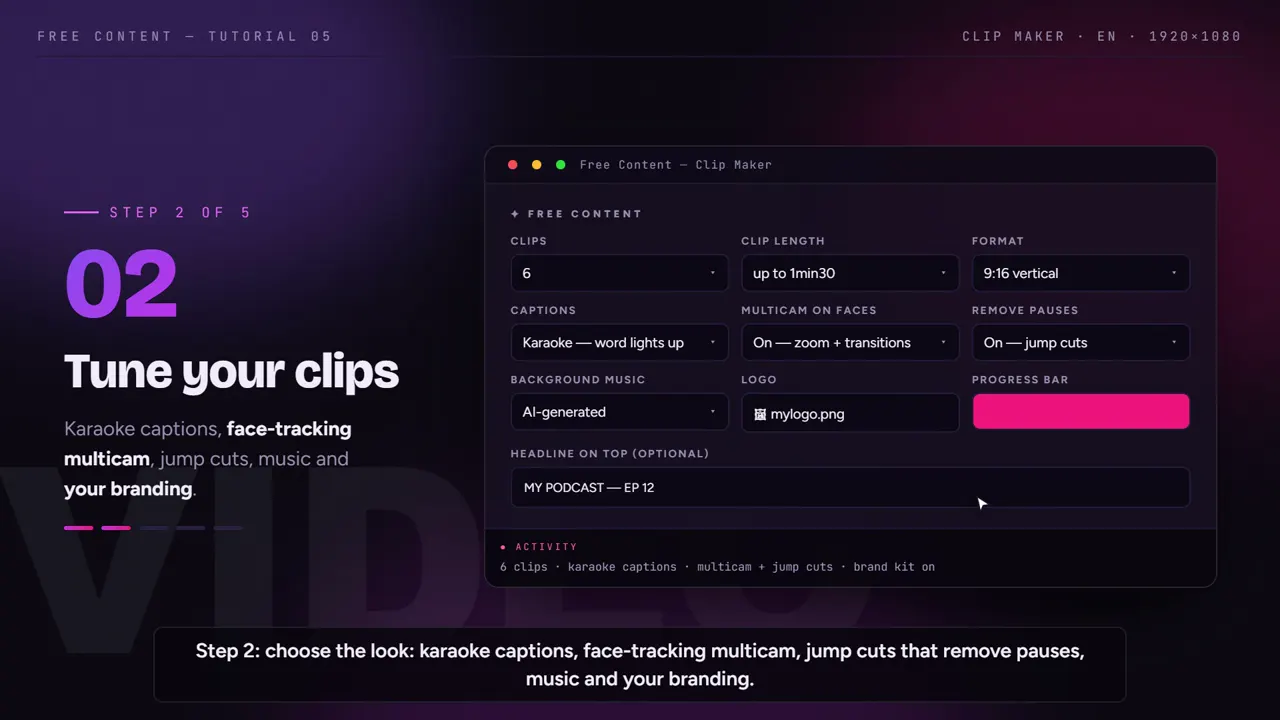
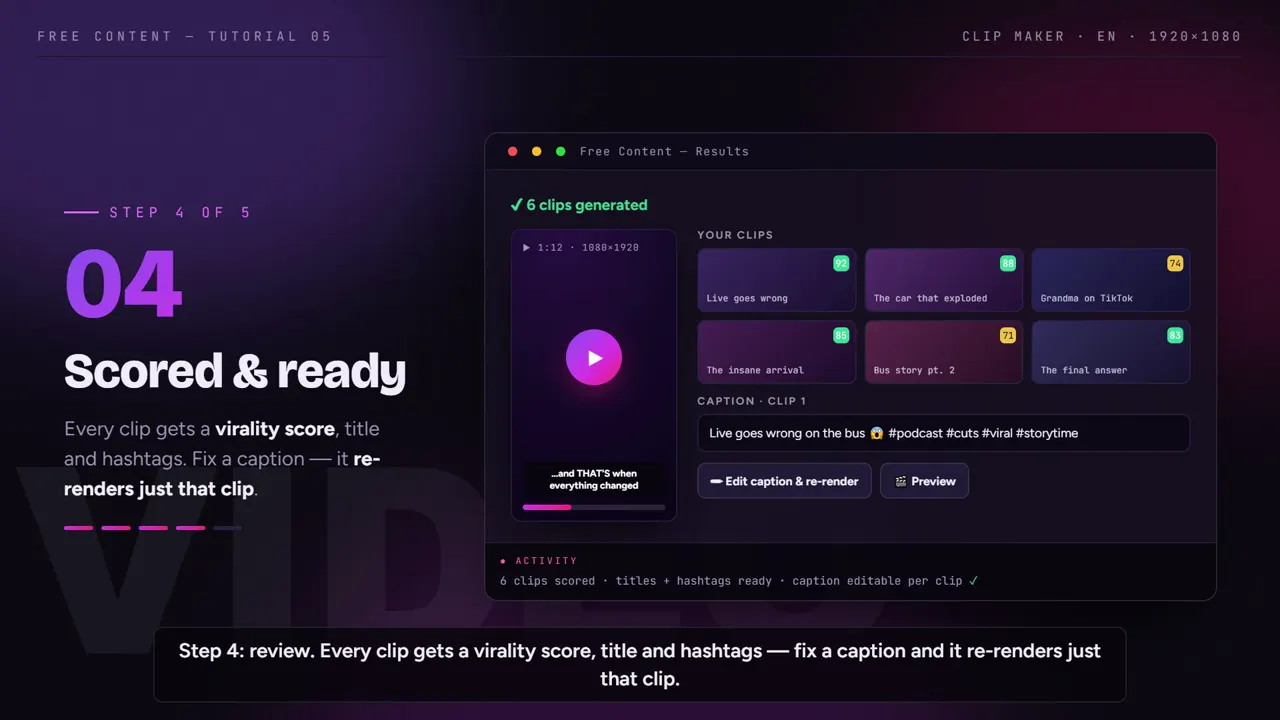
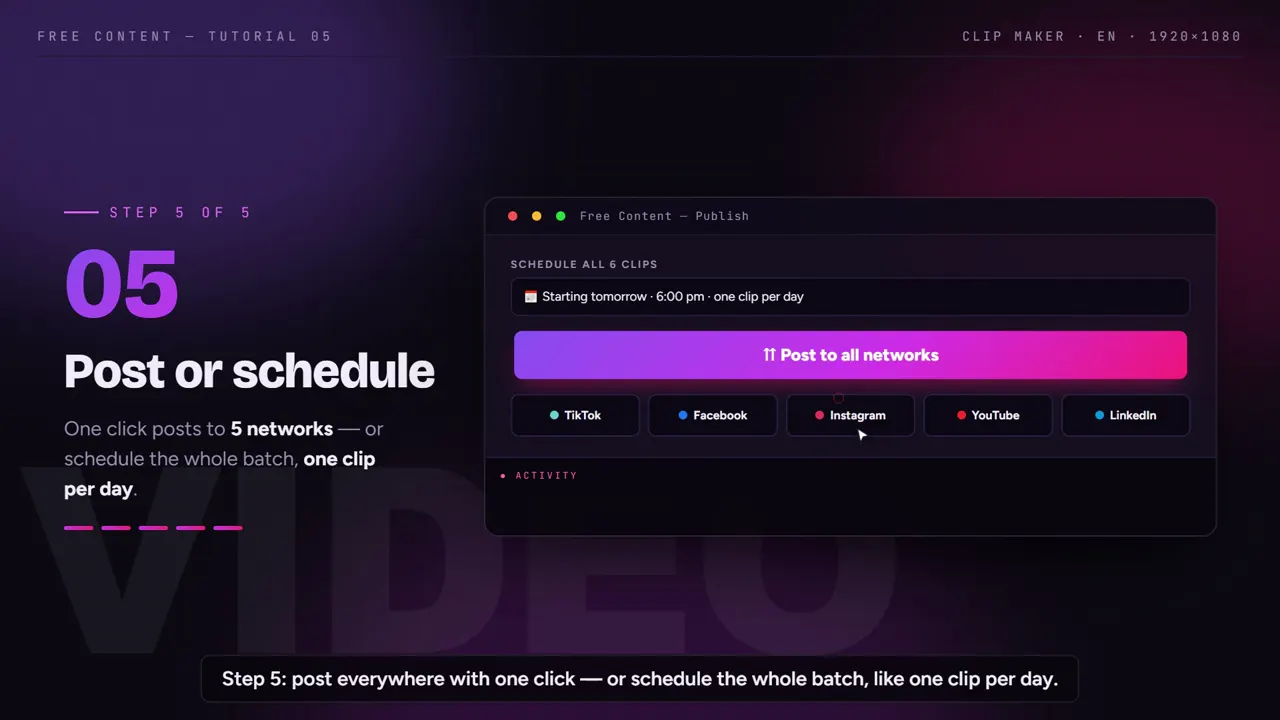
4 CapCut alternatives that make the clips for you.
Each one with what it does best and the limit that matters. Competitor data taken from the official pricing pages on October 24, 2026.
Free Content — best for clipping and publishing without a timeline
- Strength: the AI picks the moments, the camera tracks the face and karaoke captions come out ready
- Strength: publishes and schedules to 10 networks, including X, Threads, Bluesky, Pinterest and Bilibili, even on the trial
- Strength: one plan, R$ 47/month (Brazilian reais), no credits, no minute quota and no watermark
- Limit: no free-form timeline editing and no phone app
- Limit: Windows 10/11 only (Mac in beta); exports in Full HD, not 4K
Opus Clip — best if you want many networks in the browser
- Strength: runs in the browser (clip.opus.pro), on any machine
- Strength: on Pro (US$ 29/month) it publishes and schedules to 9 networks, including X, Pinterest, Threads and Bluesky
- Strength: Starter, at US$ 15/month, already removes the watermark
- Limit: on free, watermarked animated captions, videos kept only 3 days and no publishing
- Limit: Starter publishes to 3 networks without a scheduler; the page doesn't show the credit quota
Wisecut — best if you want a browser tool with a 4K option
- Strength: runs in the browser, without using your processor
- Strength: no watermark; 4K on Professional+ (US$ 118/month)
- Strength: schedules and publishes on paid plans
- Limit: free plan of 30 min/month, exports up to 3 min at 480p
- Limit: monthly hours are counted (Starter+ at US$ 33: 5 h of editor + 2.5 h of Autopilot)
Vizard — best for trying free and managing several accounts
- Strength: 60 free credits/month (1 credit = 1 minute of video)
- Strength: 4K and no watermark on paid plans
- Strength: scheduling with 6 or 20 social accounts on paid plans
- Limit: on free, a watermark, 720p, exports up to 10 min and videos kept only 3 days
- Limit: everything is counted in credits
CapCut and the automatic clip tools, side by side.
CapCut sits in the last column as a reference. Where we couldn't check a figure reliably, the cell says so instead of guessing.
| Free Content | Opus Clip | Wisecut | Vizard | CapCut (reference) | |
|---|---|---|---|---|---|
| Type of tool | automatic queue that clips and publishes | automatic clips | automatic editing | automatic clips | manual editor with AI tools |
| Where it runs | desktop app — Windows 10/11, Mac in beta | browser | browser | browser | mobile, desktop and browser |
| Free plan | 7-day trial with the full app, no card | US$ 0, up to 1080p, videos kept 3 days, no publishing | 30 min/month, exports up to 3 min at 480p | 60 credits/month, exports up to 10 min at 720p | yes; Pro features may leave a watermark |
| Entry paid plan | R$ 47/month (Brazilian reais), single plan | US$ 15/month (Starter); Pro at US$ 29/month | US$ 33/month (Starter+) | Creator — price not checked | Pro — price varies by country and platform |
| Minute or credit limits | none — rendering is local | the pricing page doesn't show the quota | 5 h of editor + 2.5 h of Autopilot on Starter+ | 1 credit = 1 min; paid plans from 600/month | not checked |
| Watermark | never, not even on the trial | animated captions watermarked on free; none from Starter | none | yes on free; no on paid plans | Pro features may leave one on free |
| Publishing | publishes and schedules to 10 networks, even on the trial | Starter publishes to 3 networks; Pro schedules to 9 | schedules and publishes on paid plans | schedules on paid plans (6 or 20 accounts) | not an automatic posting queue |
Checked in October 2026 on the official pricing pages — plans and prices change, so check their website before you decide. Vizard and CapCut prices are left out because we couldn't verify them reliably. Where the others beat us: a browser on any computer (Opus Clip, Wisecut, Vizard), 4K (paid Wisecut and Vizard) and, for CapCut, a phone app and a full manual editor.
When to stay with CapCut — and when to switch.
Stay with CapCut if you enjoy editing, need specific effects and transitions, or edit mostly on your phone. None of the alternatives on this list replaces a full manual editor — and Free Content doesn't try to be one.
Switch to an automatic clipping tool if the problem is time: hours of podcast, livestream or sermon recordings that never become posts. Among the automatic ones, Free Content is the pick if you use a Windows PC and want to clip and schedule without counting minutes; Opus Clip, Wisecut and Vizard are the pick if you need a browser or 4K.
Plenty of people use both: the automatic tool handles everyday volume and CapCut is kept for the special piece that deserves hand editing. Free Content clips come out as video files on your PC, with no watermark, and can be opened in CapCut afterwards. It works well for clip channels, podcast clips recorded on video and agencies. See how Free Content turns long videos into short clips.
Compare them one by one too: CapCut vs Free Content · Opus Clip vs Free Content · Wisecut vs Free Content · Vizard vs Free Content · best Opus Clip alternatives.
Frequently asked questions.
If your question is about the app in general, the home FAQ covers the rest.
Which CapCut alternative for clips is free?
Which one makes clips without a watermark?
Which one runs on a Windows PC?
Which one publishes to social media by itself?
Does it work with an audio-only podcast?
Which of them has a phone app?
Do I need editing skills to use an automatic clipping tool?
Can I clip in one tool and finish in CapCut?
Let the AI handle clipping and posting.
7 days with the full app, no sign-up and no card. Pick a long video that would take hours in CapCut and watch the batch come out clipped, captioned and scheduled.
⤓ Download Free Content for WindowsCompare
- Wisecut alternative
- Opus Clip alternative
- Vizard alternative
- CapCut alternative
- Opus Clip alternatives
- CapCut alternatives for clips