YouTube to Shorts: turn long videos into ready-to-post Shorts.
Your long video is already on YouTube. To turn a YouTube video into Shorts, paste the link, mark the section and the Clip Maker delivers vertical clips with captions — ready for Shorts, TikTok and Reels, without downloading the whole video.
From link to Short in three steps.
Turning a YouTube video into Shorts doesn't require the original file on your computer. The link is enough.
Paste the link and mark
Paste the video's address and mark the section you want. The app downloads only that part, not the full two hours.
Get the clips
The Clip Maker transcribes the section, picks the best moments and delivers each one in vertical 1080×1920, with captions and a face-tracking camera.
Post or schedule
Publish in one click to YouTube Shorts, TikTok and Instagram Reels — and also Facebook, LinkedIn, X, Threads, Bluesky, Pinterest and Bilibili — or schedule the batch.
A long video turning into Shorts.
In the Clip Maker tutorial, a long video becomes vertical clips with karaoke captions, a face-tracking camera and a virality score, ready to post.
What it looks like inside the app.
Screens from the tutorial recorded in the app.
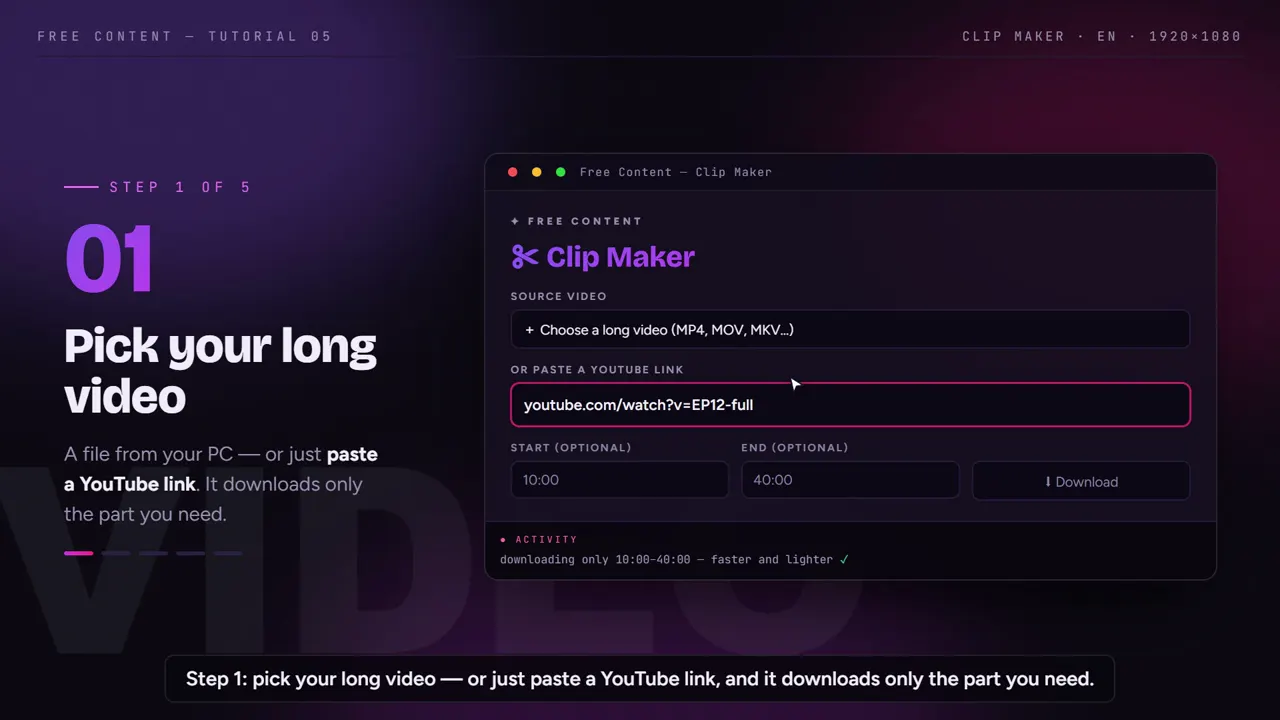
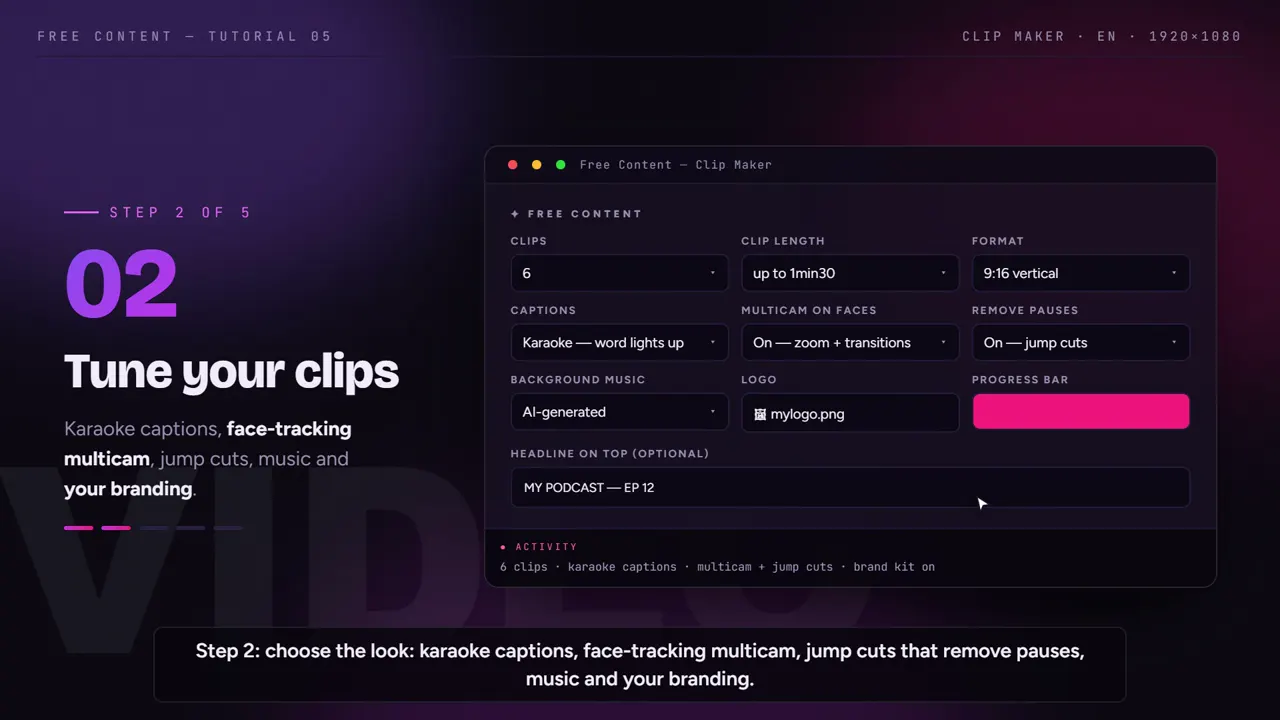
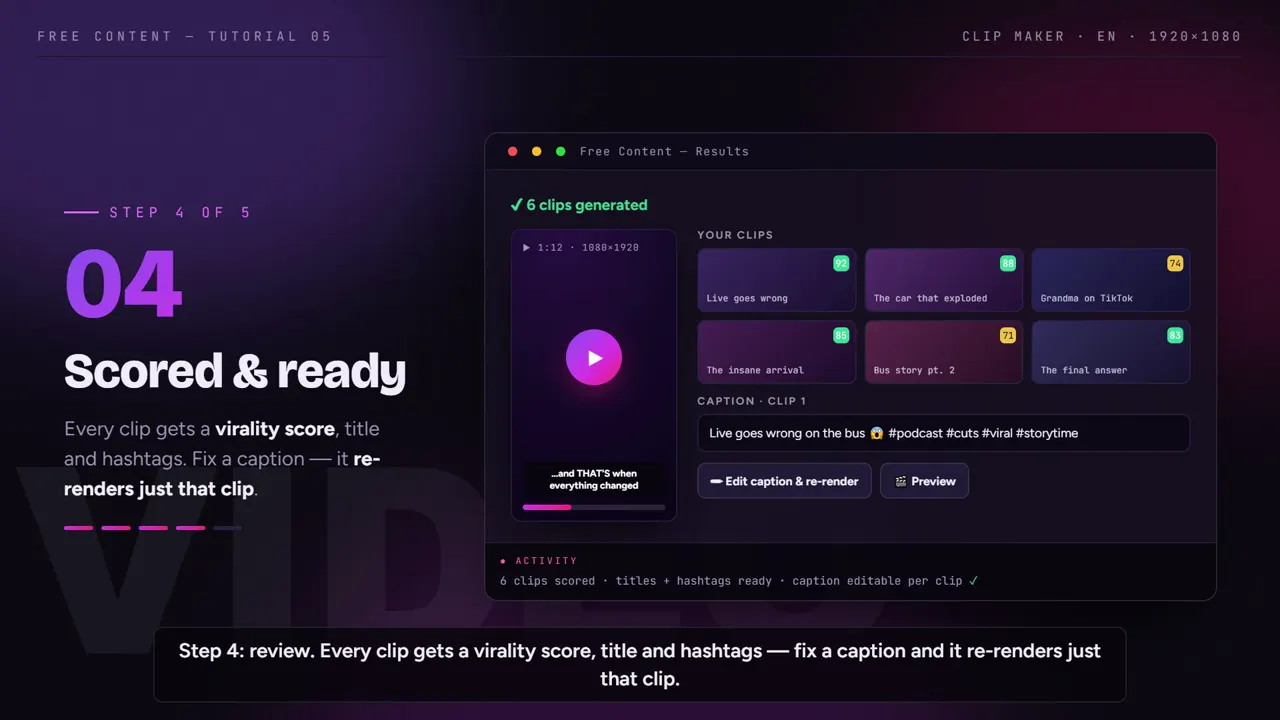
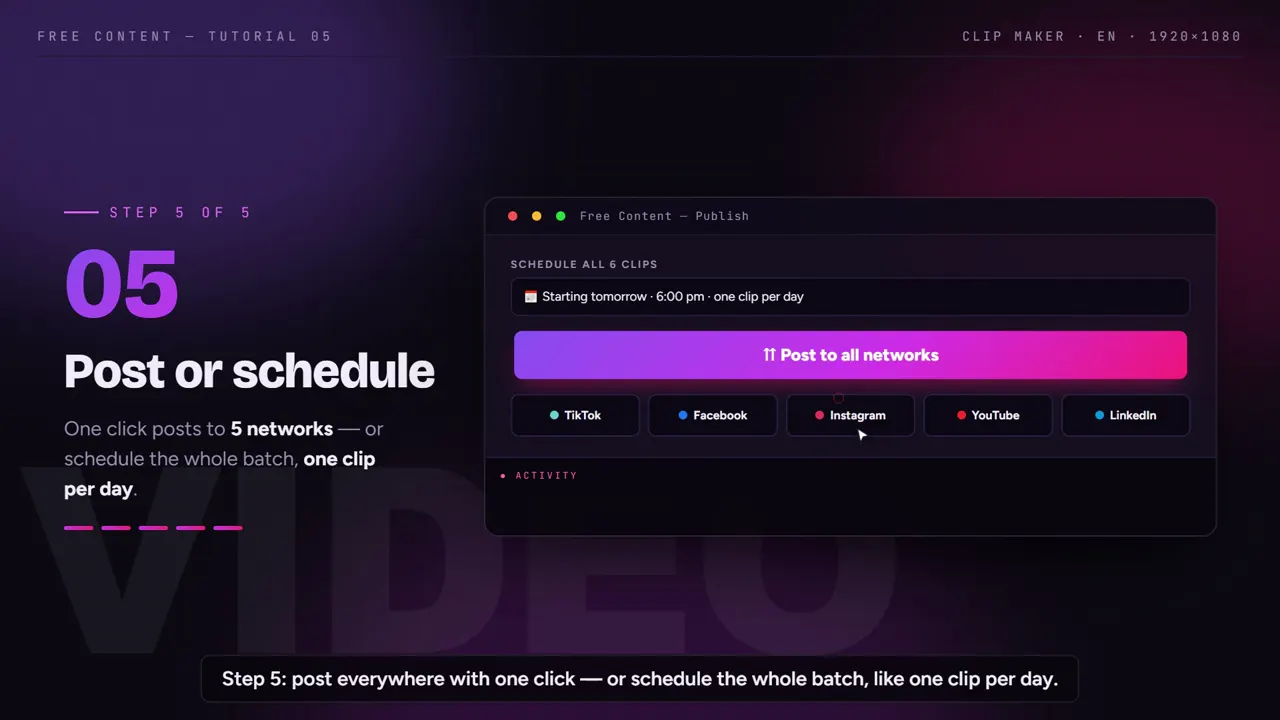
First things first: only clip what you're allowed to use.
The app accepts any link, but responsibility for the content lies with whoever publishes it.
Use links to your own videos — from your channel, your church, your podcast, the client who hired you — or to videos whose owner has given permission to clip and repost.
A channel that clips other creators only holds up with the original creator's authorization. Without it, the clip can be taken down and the channel penalized. If that's your model, read about how to build a clip channel the right way.
Want to reuse the idea of a video that isn't yours? Then there's another path: the Copy an idea format creates a new video with the same structure, without using the original.
What every Short already includes.
Everything that separates a thrown-together clip from a Short that stops the thumb in the feed, without opening an editor.
Only the marked section
- Paste the YouTube link
- Mark the start and end of the part that matters
- Less waiting and less disk space
Moments chosen by the speech
- Transcription with automatic language detection
- Starts and ends on a complete sentence
- Pauses removed inside the clip
True vertical
- 1080×1920, Full HD
- A camera that follows the speaker's face
- Synced karaoke captions
Ready to upload
- Title, hashtags and virality score
- One click to Shorts, TikTok and Reels
- Batch scheduling, with a list to cancel
Who turns YouTube videos into Shorts.
Podcasts with full episodes on YouTube: each episode becomes a week of podcast clips.
Churches that stream the service: the sermon becomes church sermon clips for the week.
Clip channels working with authorized material: see the clip channel routine.
Agencies clipping clients' videos, each client in their own profile: see video automation for agencies.
How to mark a good section.
Leave some margin. Don't try to hit the exact second. Mark a block a little bigger than the moment you remember; the AI finds where the sentence starts and ends and cuts there.
Prefer single-topic blocks. A stretch about one thing from start to finish yields clips that make sense on their own. Jumping between topics every minute makes it harder.
Use what your audience already pointed out. Comments with timestamps, retention peaks in YouTube Studio and recurring questions are good clues about where to mark.
Think of the title before you mark. If you can't sum up the section in one sentence, it probably won't stand on its own. Each clip already comes with a title and hashtags, but the right section starts with your choice.
Spread out your Shorts. Instead of releasing them all at once, schedule one a day and let the virality score decide the order. For footage recorded on your PC, see how to turn a long video into short clips straight from the file.
Frequently asked questions.
If your question is about the app in general, the home FAQ covers the rest.
Can I turn any YouTube channel's video into Shorts?
Why download just a section instead of the whole video?
What's the right aspect ratio for Shorts?
Does it work with recorded livestreams saved on YouTube?
Can I post the same clip to TikTok and Instagram too?
The original video is in Spanish. Can the Short have English captions?
How do I spread the Shorts across the week?
Can I get several Shorts out of one video?
Can I do it on my phone?
Is it free?
Do the Shorts come out with a watermark?
Paste the link to your latest long video.
Mark the section, get your Shorts and post or schedule them. Seven days free, no sign-up and no credit card.
⤓ Download Free Content for Windows